

Agent activity
What the toolbar icon, the popup and the activity layer show while an agent controls a tab, and how to turn the layer off.
Developer preview
An agent works in tabs of your own browser, so the extension marks the tab it controls. The mark appears in the toolbar icon, the popup and the activity layer drawn over the page.
Toolbar icon
| Icon | When | Tooltip |
|---|---|---|
| Dark, with a white pointer | Connected, this tab is not controlled | oh-my-webbridge: connected |
| Dark, with an amber pointer | A session controls this tab | oh-my-webbridge: session research controls this tab |
| Grey | Not paired, or connecting | oh-my-webbridge: not paired, oh-my-webbridge: connecting |
| Grey with a red dot | Daemon not running, or the daemon refused it | oh-my-webbridge: daemon not running, oh-my-webbridge: connection refused |
| Grey with pause bars | Paused | oh-my-webbridge: paused |
The amber pointer is set on the controlled tab only. Other tabs keep the connection state icon. The tooltip uses the interface language of the extension.
The popup
While connected, the popup starts with a row labeled "This tab". It reads "Not controlled" for an ordinary tab, "Session research" for a controlled tab, and "Session research is working" while an action runs. The row follows the active tab.
Below the row is a prompt for your agent with a copy button. It shows suggestions for the active tab in turn, a new one every six seconds, starting with the ones that fit the page best. The popup picks them from the address, the title and what the page holds, such as tables, form fields, code blocks, a video or selected text. The pointer or the focus on the prompt holds the current suggestion; once you edit the prompt, it keeps your text.
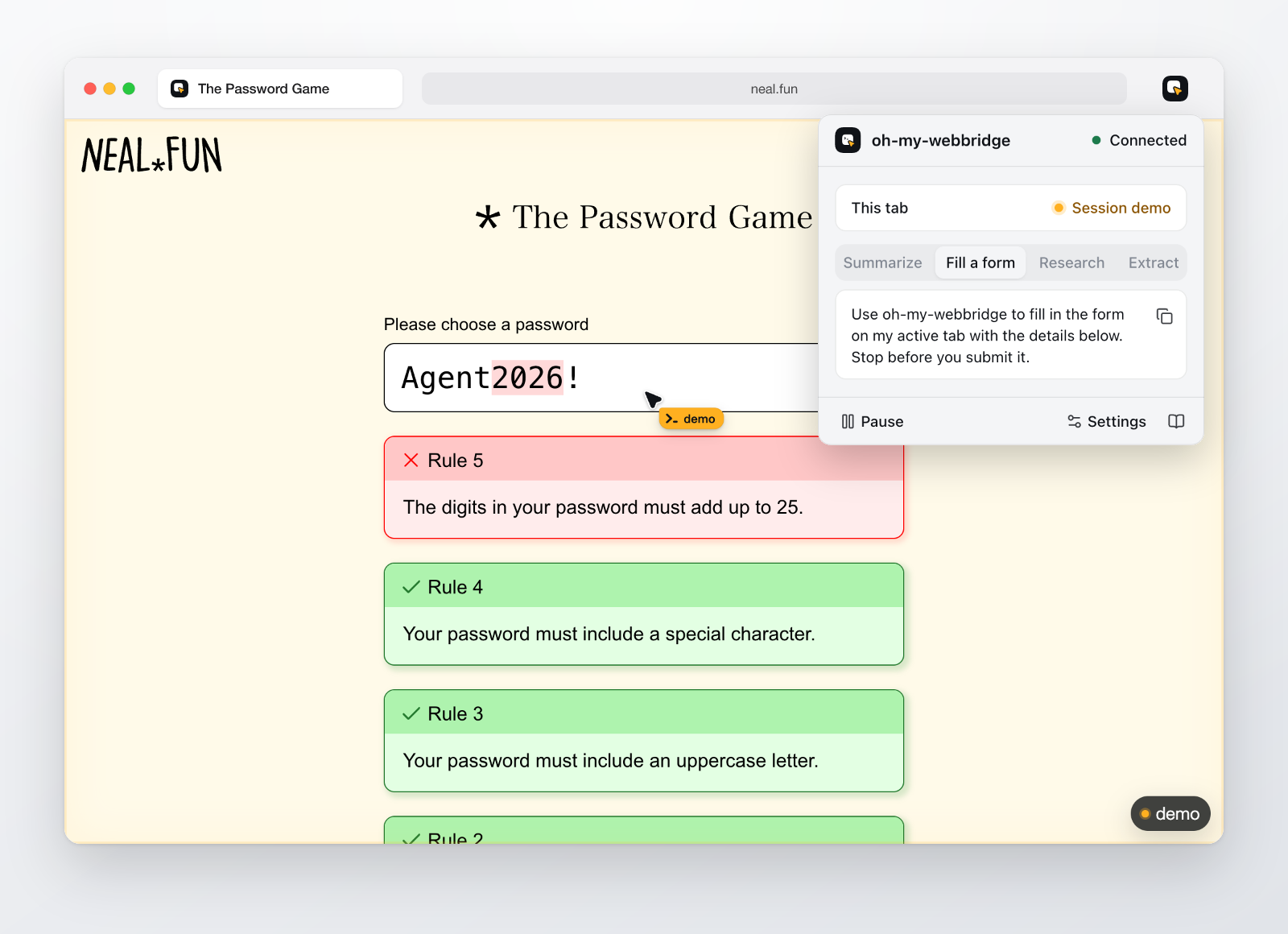
On the page
The layer is drawn in Chrome and Firefox, on tabs the session opened and on tabs it borrowed from you. It ends when the session releases or closes the tab. While it is drawn, the page shows:
- An edge glow while an action runs, fading out shortly after it finishes.
- The agent's pointer, with a tag that shows the session name. It moves to the centre of each element an action targets and stays at the last one. On light backgrounds the arrow is dark with a white edge, on dark backgrounds white with a dark edge.
- A chip in the bottom right corner with an amber dot and the session name.
- The amber-pointer icon as the favicon, in place of the page's own icons.
- A focus frame around the element an action targets, with the action name above it: Click, Hover, Type, Select, Check, Focus, Scroll, Drag or Upload. The label moves below the element when the element sits near the top edge. The frame follows elements of the main document; while the session has an iframe selected, the page shows the glow, the chip and the pointer at its last position only.
The focus frame stays for a moment after the action finishes, so a run of clicks reads as one activity instead of a flicker of frames. A navigation replaces the document, and the layer is drawn again on the new page.
How it stays out of the way
- The layer is one host element with a shadow root. The page's styles do not reach its parts.
- It uses
pointer-events: none, so clicks, selection and hover reach the page underneath. - It is
inertandaria-hidden, so screen readers and the page's accessibility tree skip it.read_pagereturns the page text without the chip, andsnapshotdoes not list the layer. - Screenshots and PDFs are taken with the layer hidden, then it reappears.
- The layer carries a 75-second lease that the extension renews every 30 seconds. If the extension stops renewing it, the page removes the layer by itself and restores its own favicon, so a stopped worker or a lost debugger session leaves no markings behind.
Turn it off
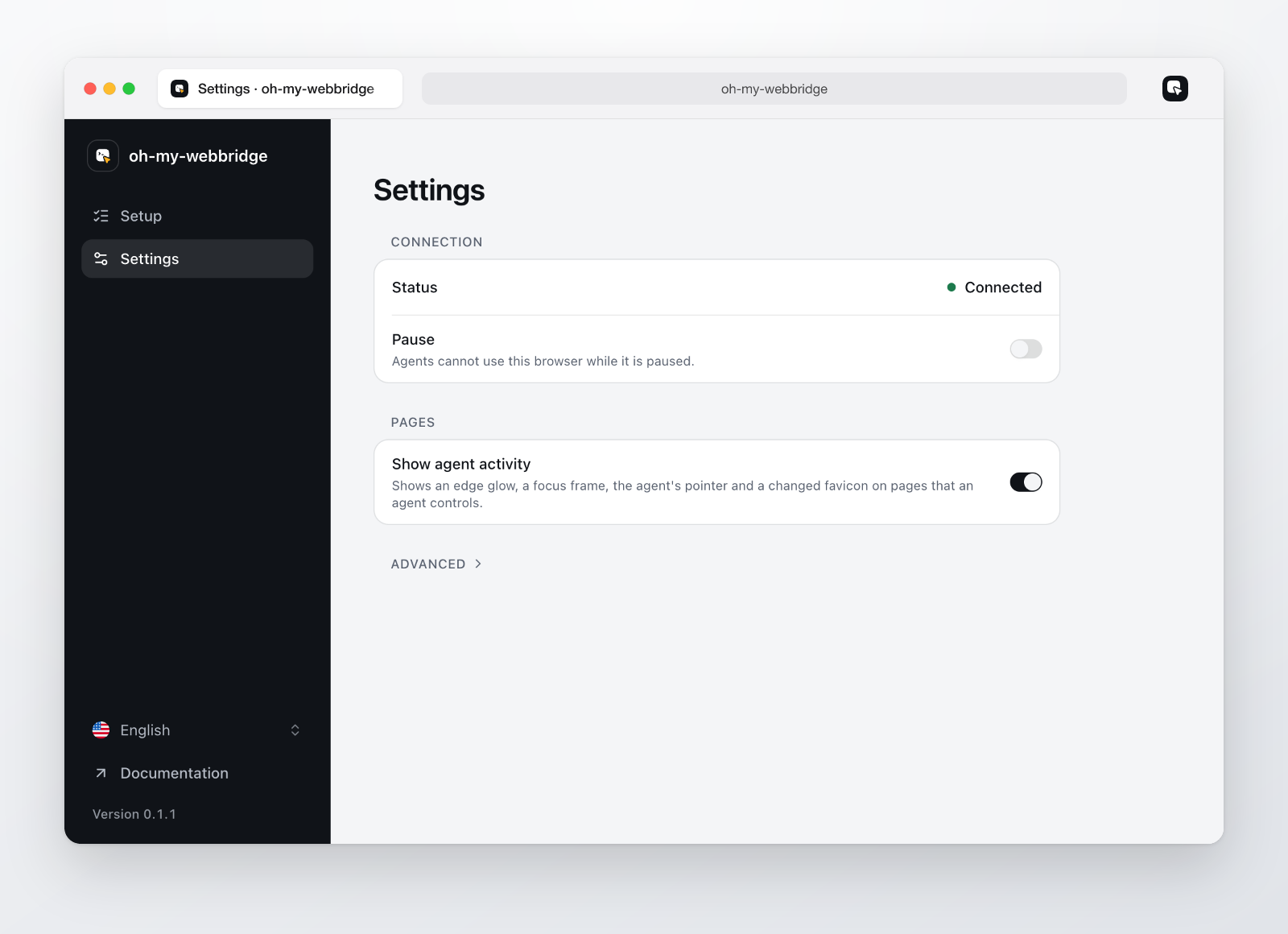
Under Settings, then Pages, turn off Show agent activity. The layer disappears from every controlled tab at once and is not drawn on tabs that sessions claim later. Agents keep working, and the toolbar icon and the popup row still show which session controls the tab. Turn the switch on again to draw the layer on the tabs that are still controlled.
The layer follows the system's reduced motion and reduced transparency settings: the glow stops pulsing, the focus frame and the pointer move without gliding, and the chip switches to a solid background.
